
A drive failure in an HPE ProLiant server usually starts with an amber light on the front bay and an alert in iLO. The fix looks simple: pull the failed drive and slot in a new one. In practice, the wrong replacement can show up as an unrecognized device, report incomplete health data, or fail to join the array cleanly.
ProLiant servers are designed around validated components, and storage is where that design shows most. This guide explains how to identify the right HPE-compatible hard drive, what to verify before ordering, and how to replace drives without putting your data at risk.
Why HPE Drive Compatibility Deserves Extra Attention
A ProLiant storage subsystem is a chain: the drive, the SmartCarrier tray, the backplane, the Smart Array controller, and the iLO management processor. Each link affects how the drive behaves and how accurately it is monitored.
- Firmware and health reporting: HPE-qualified drives carry firmware that reports status, temperature, and predictive failure data to iLO and Smart Storage Administrator (SSA). Unqualified drives may work but report less.
- Carrier design: HPE hot-plug drives sit in model-specific SmartCarriers with status LEDs. A drive without its carrier cannot be installed or hot-swapped properly.
- Controller expectations: Smart Array controllers manage drives according to their reported features, so interface, sector format, and firmware all affect rebuild behavior.
HPE-branded drives are typically built by major drive manufacturers and customized with HPE firmware. Two drives with identical capacity and speed on paper can therefore behave differently inside a ProLiant chassis.
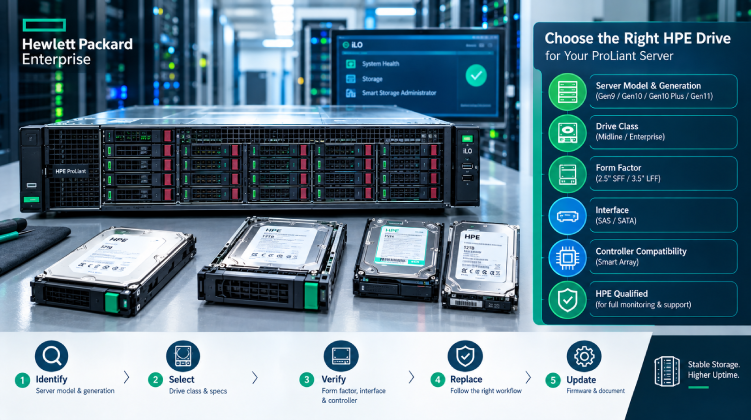
Step 1: Identify the Server Model and Generation
Begin with the server, not the drive. ProLiant generations (Gen9, Gen10, Gen10 Plus, Gen11) differ in backplane design, supported interfaces, and controller options, even within the same series.
- Find the exact model (for example, DL380 or ML350) and generation on the chassis label or in iLO.
- Note the serial number and product number, which let a supplier or HPE’s documentation confirm the original configuration.
- Check the drive bay type. Small form factor (SFF) and large form factor (LFF) chassis use different carriers, and some models support both through different cages.
Having these details ready prevents most ordering mistakes before they start.
Step 2: Understand HPE Drive Classes
HPE groups its hard drives into broad categories, and the labels help narrow your search:
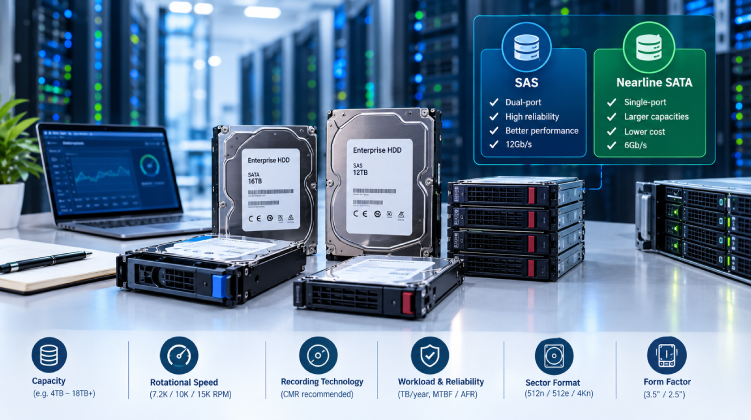
- Midline (MDL) drives: 7.2K RPM SATA or SAS models built for capacity-focused workloads such as backup, archives, and file storage. They offer the lowest cost per terabyte.
- Enterprise drives: 10K and 15K RPM SAS models built for higher performance and heavier duty cycles. Many teams now replace these with SSDs for performance-sensitive tasks.
Midline SAS drives add dual-port connectivity and stronger error handling over midline SATA. That makes them a sensible middle option for production arrays that need more resilience without enterprise pricing.
Step 3: Match Form Factor, Interface, and Controller
Form Factor
- 3.5-inch LFF: Highest capacities, common in storage-heavy servers.
- 2.5-inch SFF: Better density per rack unit and the most common choice in modern ProLiant systems.
Using a 2.5-inch drive in a 3.5-inch bay generally requires an HPE-approved converter carrier, so never force an unmatched drive into a tray.
Interface
- 12Gb/s SAS is standard on current-generation servers and supports dual-port redundancy.
- SATA is fine for capacity tiers but runs on a single port and only works if the backplane and controller support it.
Smart Array Controller Support
Review which Smart Array controller your server uses. Controller generation determines supported interfaces, sector formats, and firmware requirements. Confirm that your chosen drive appears as supported for that controller, and avoid mixing drive types inside one logical drive.
Original HPE Drives vs. Third-Party Alternatives
Third-party drives may physically fit and even run, but the experience inside a ProLiant can differ.
| Factor | HPE-Qualified Drive | Non-Qualified Drive |
| iLO and SSA health reporting | Complete | May be limited |
| Firmware updates via HPE tools | Supported | Typically unavailable |
| Warranty and support handling | Straightforward | May require reverting to a qualified drive first |
| Carrier included | Usually yes | Often sold separately |
On some newer generations, iLO may flag drives it cannot verify as HPE-qualified. For production servers under an active support contract, qualified drives are the safer choice. For test environments, the cost savings may justify the trade-off.
Common Mistakes When Replacing HPE Server HDDs
- Matching capacity and nothing else. Interface, speed, sector format, and firmware matter just as much.
- Overlooking the carrier. A bare drive cannot be installed in a hot-plug bay.
- Mixing RPM or drive classes in one array. This produces uneven performance and complicates troubleshooting.
- Pulling the wrong drive. Always confirm the failed bay in iLO or SSA and use the locate (UID) function before removing anything.
- Ignoring firmware. An older drive or controller firmware version is a frequent source of unexplained array errors.
A Careful Replacement Workflow
- Confirm the failure in iLO or SSA and record the bay number, model, and firmware.
- Check array health. If the array is already degraded, verify your backup before making any change.
- Locate the drive with the UID indicator, then hot-swap it with a qualified replacement.
- Watch the rebuild in SSA until the logical drive returns to optimal status.
- Apply firmware updates using the Service Pack for ProLiant (SPP) if the new drive differs from the rest of the array.
- Document the change with the part number, bay, and date.
Sourcing HPE-Compatible Drives in Bangladesh
For IT teams in Bangladesh, a failed drive often means days of searching and the risk of buying relabeled or refurbished stock from an unverified source. A supplier with steady enterprise hardware experience, local inventory, and the ability to match part numbers to your ProLiant model removes much of that risk.
Datacom supplies HPE server HDDs for common ProLiant generations, with SAS and midline options across several capacities. If you are unsure which part fits your server, a dependable HPE hardware supplier can check compatibility against your model and controller before you place an order, reducing returns and shortening time in a degraded state.
Final Thoughts
Replacing a ProLiant hard drive goes smoothly when you prepare for it. Identify the server generation, choose the right drive class, match the form factor, interface, and controller, and favor HPE-qualified drives for production. Follow a disciplined replacement and firmware routine, and your storage will keep reporting accurately and rebuilding cleanly the next time a drive wears out.